Step 2 - Layout
Step 2 determines how the report will look and what information it will provide about the people you selected in Step 1.
In this screen, you can choose the Type of Report, create new layouts and choose columns, produce files for export and generate church directories.
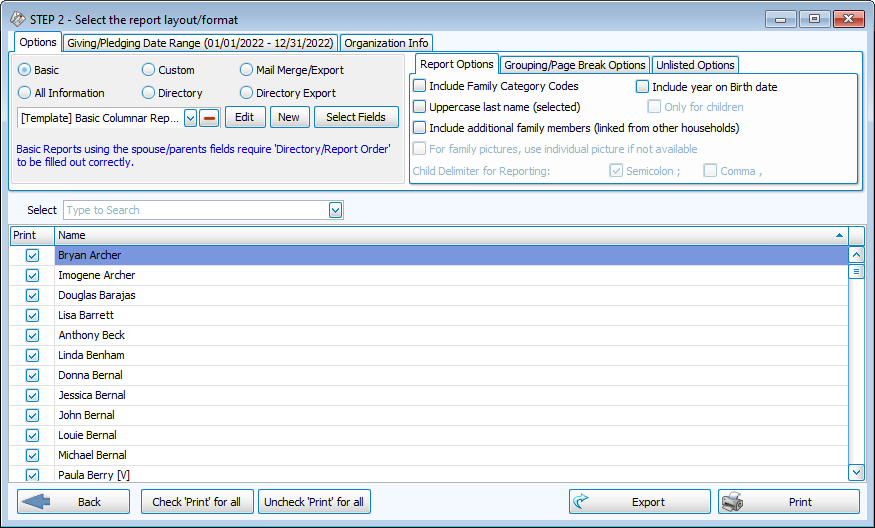
Report Types
Basic
Basic Reports are the default format and incredibly flexible. People that meet criteria in step 1 are listed to make rows and the fields you want to include are listed as columns. The basic template is called [Template] Basic Columnar Report.
All Information
All Information reports are used to make printable copies of individual records. There is a basic and multi-column template. This report is also edited with primarily with the column selector under Select Fields.
Custom
Custom Reports have the same flexibilities as Directories but without the additional requirement of Include on Directory.
Directory
Directories list people with their families based on their Directory/Report Order designation. These layouts require that people meet the criteria as determined in Step 1 and have the Include on Directory box checked.
Mail Merge/Export
Mail Merge/Export creates a .TXT or .CSV file with people as rows and fields as columns. These file types are commonly used with other programs to create envelopes, labels, and letters.
Directory Export
Directory exports have the same stipulations that directories do in a .TXT or .CSV file. Like directories, listings will be organized with the family members in their household.
Report Options
-
Options > Include Family Category Codes - Check this box to include Family Category Codes such as [M] or [V] and Donations record designations [D].
Basic, All Information
-
Options > Uppercase last - Make all surnames uppercase, regardless of how they're entered in the record.
Basic, All Information, Custom, Directory
-
Options > Include additional family members (linked from other households) - List linked People Records (typically children with parents in different family records).
Basic, All Information, Custom, Directory, Mail Merge/Export, Directory Export
-
Options > For family pictures, use individual picture if not available - Include an individual photo, if family photo is absent.
Custom, Directory
-
Options > Child Delimiter for Reporting: - When multiple children in a family are listed, choose whether to separate names with a semicolon or a comma.
Custom, Directory
-
Options > Include year on Birth date - Set birth dates to display as month and day only, or to only include the year for children, indicated with a 3 in Directory/Report Order.
Basic, All Information, Custom, Directory, Mail Merge/Export, Directory Export
-
Grouping/Page Break Options > Break on each person - Start a new page for each individual record.
All Information, Custom, Directory
-
Grouping/Page Break Options > Page break on primary sort field - Start a new page for each code, date or entry selected as Sort 1 on Step 1.
Basic, All Information, Custom, Directory
-
Grouping/Page Break Options > Alphabetic page break - Create a new page with each letter when Sort Field 1 is set to Name: Last, First - Alphabetical
Basic, All Information, Custom, Directory
-
Grouping/Page Break Options > Include Alphabetic Heading - Create a subheading for each list code or with each letter when Sort Field 1 is set to Name: Last, First - Alphabetical. Click the style button to set text format for the subheading.
Basic, All Information, Custom, Directory
-
Unlisted Options - Determine whether contact information checked as unlisted should be excluded or indicated with an asterisk.
-
All Information Options > Print Empty Fields - When a field included in the layout is blank for someone, that entry will be skipped. Checking this box activates the following All Information Options.
-
All Information Options > Print a line for empty field - When a field included in the layout is blank for someone, the field will print with a blank line for a form.
-
All Information Options > Include Family list field choices - When an empty list field from the family record is included, also print the options available in the drop down.
-
All Information Options > Include Individuals list field choices - When an empty list field from the individual record is included, also print the options available in the drop down.
-
All Information Options > Include Groups/Classes description - When the individual is not a part of a group or class, names of available groups and classes will display.
-
All Information Options > Include Skills/Interests description - When the individual does not have skills and interests selected, names of available skills and interests will display.
-
Export Options > File - This is the location on your computer where the export will save. Change the save location by clicking the ... button.
Mail Merge/Export, Directory Export
-
Export Options > Delimiter - Tab delimiters create .TXT files and Comma delimiters create .CSV files.
Mail Merge/Export, Directory Export
-
Export Options > Export Name - This determines the name of the saved export. This field will default to the template name.
Mail Merge/Export, Directory Export
Selecting People
Although most of the selection work is done on Step 1, if there are a few people that meet the criteria but should be excluded, deselect the check box next to their name. This will remove them from this instance of the report, but does not change any of your Step 1 criteria or Saved Selections. Likewise, to select only a handful of people,  and then search in the Select drop down or scroll and select the individuals to include.
Giving/Pledging Date Range

This date range dictates what is shown on this report. This is different than the Giving/Pledging criteria as set in Step 1 which determines who makes it into the listing. For example, you could ask for a list of people who haven't had giving in the current year in Step 1 and create a report that displays their giving in the previous calendar year.
Organization Info

This tab allows you to adjust the information that comes in from System Information.
To add another set of contact information click the  or click the
  to edit existing. This will change the information included in report headings, but will not make changes to System Information.
Print or Export
Click  to generate the Print Preview. From there you can review your work, send it to the printer, or Exports it as another file type.